How to Transcribe a YouTube Video to Text Online Free
May 22, 2026 · By ScribeFlash Team · 8 min read
Learn how to transcribe YouTube videos to text online with ScribeFlash. Paste a video link, generate transcripts, and export TXT, DOCX, PDF, SRT, or VTT.
YouTube TranscriptVideo to TextSubtitlesTranscriptionScribeFlash
Need the text from a YouTube video? A transcript lets you copy, search, edit, translate, summarize, quote, or turn the video into subtitles.
If you are looking for a practical youtube transcript generator free tool, the easiest route is to paste a link into an online service that can transcribe a video link to text free without making you download extra software first. A clean video transcript is useful for articles, lecture notes, captions, repurposed posts, research, and internal documentation. If you also need a YouTube transcript extractor for subtitle files, the right workflow should cover both plain text and timed captions.
ScribeFlash is an AI-powered transcription tool for turning audio, video, and online video links into text. If you want a faster way to convert a YouTube link into editable text, try the online video URL transcription tool.
What is YouTube transcription?
YouTube transcription means turning the spoken words in a video into text. The result can be a plain transcript, a subtitle file, or both.
When people say YouTube video to text, they often mean one of three things: a full video transcript with everything said in the video, subtitles with timestamps for playback, or a quick way to extract transcript from YouTube video content for notes, articles, or research.
A transcript is usually the full written version of the audio. Subtitles and captions are meant for playback, so they are split into timed lines. A transcript extractor pulls the spoken content out of the video and formats it into readable text. If the tool also supports timestamped exports, it can act as a youtube transcript generator ai workflow and a subtitle generator at the same time.
If you need to transcribe youtube video to text, the best setup is one that gives you both options: readable text for editing and subtitle formats for publishing.
Why transcribe a YouTube video to text?
People do this for very different reasons, but the goal is usually the same: make video content easier to use.
Content creators often convert YouTube video to text online so they can turn a long video into a blog post, newsletter, script, or short-form clips. Marketers use transcripts to pull quotes, write landing page copy, and find sections worth repurposing. Students and researchers want searchable notes instead of scrubbing through a one-hour lecture again. Podcasters and interviewers use transcripts to review what was said, spot key moments, and speed up editing.
Online course creators and social media teams also need transcripts for accessibility and subtitles. If you can get transcript from YouTube video material quickly, you save time across content production, review, and publishing.
That is why a good YouTube video to text converter is not just a convenience tool. It becomes part of a repeatable workflow for anyone who needs to transcribe video to text more than once.
How to transcribe a YouTube video with ScribeFlash
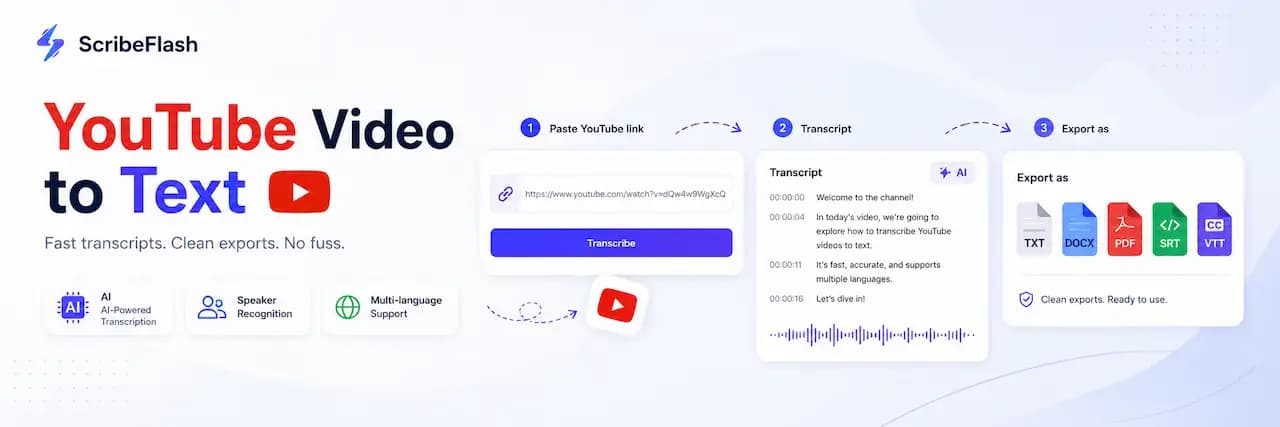
Paste a video link, choose the language, and generate a YouTube transcript in a few steps.
1. Copy the YouTube video URL
Open the video you want to transcribe and copy the link from your browser or the YouTube share menu.
2. Paste the video link into ScribeFlash
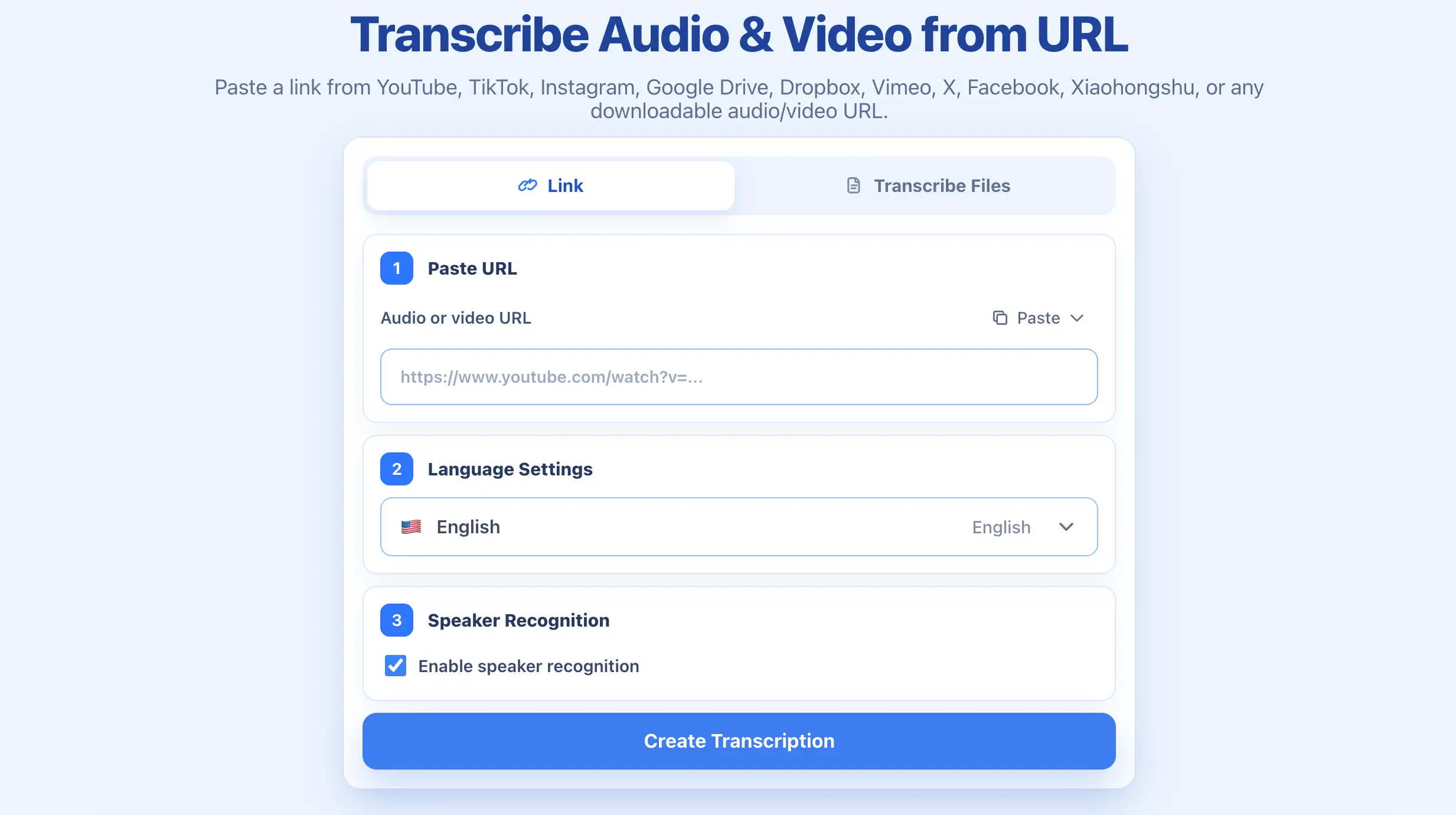
Go to the video link to text page and paste the URL into the input field. This is the fastest path when your source is already online.
3. Choose the transcription language
Select the language spoken in the video. This helps improve accuracy, especially for multilingual content, interviews, and educational videos.
4. Enable speaker recognition if needed
If the video includes more than one speaker, turn on speaker recognition. It is useful for interviews, podcasts, roundtables, and webinar recordings.
5. Generate the transcript
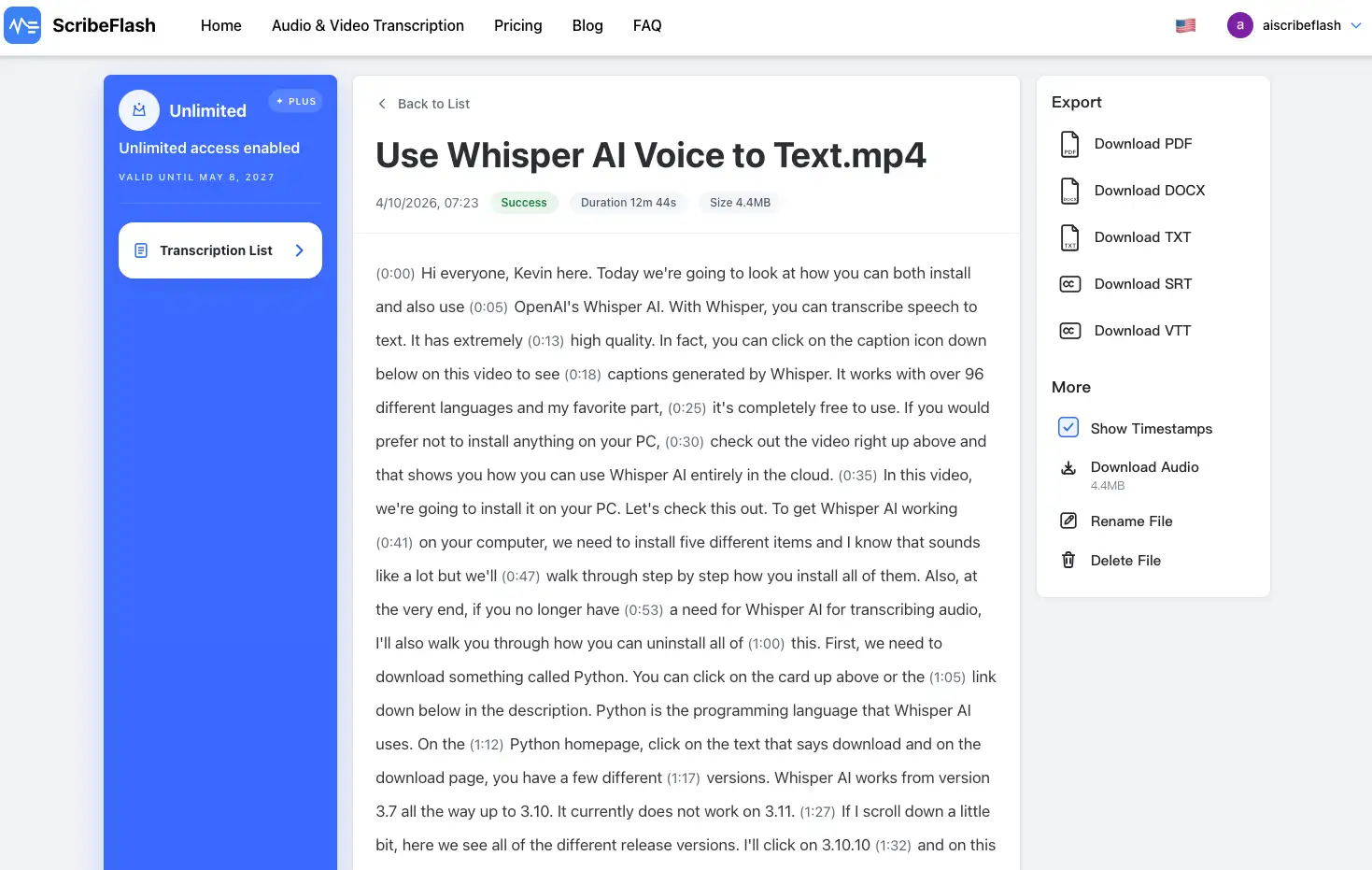
Start the job and let the tool process the video. Once it is done, you will get editable text that you can review, copy, or export.
6. Export as TXT, DOCX, PDF, SRT, or VTT
After the transcript is ready, export it in the format that fits your next step. Text formats work well for editing and sharing. Subtitle formats work better for playback and publishing.
Best export formats for YouTube transcripts
Once the transcript is ready, export it in the format that matches your workflow.
TXT
TXT is the simplest option. Use it when you want to copy the transcript into a document, highlight quotes, clean up text, or reuse the content elsewhere. It is a good default if you just need the words.
DOCX
DOCX is better when the transcript is going into a draft, report, meeting recap, lesson notes, or content outline. It is easier to edit and share with teams that work in Word or compatible editors.
PDF
PDF is useful for archiving, sending a fixed version to someone else, or keeping a transcript as a formal reference document. It is less flexible for editing, but better for presentation.
SRT
SRT is one of the most common subtitle formats. If you need a YouTube subtitles generator workflow, SRT is often the first export to try. It works well when you want to generate subtitles from YouTube video content, create a YouTube subtitle file, or clean up YouTube captions to text with timestamps included.
VTT
VTT is another subtitle format, often used for web video players, course platforms, and embedded media. If your transcript needs to become timed captions for online playback, VTT is a strong option.
YouTube transcript vs YouTube subtitles
People often use these terms interchangeably, but they are not the same.
A youtube to transcript workflow produces the full written content of the video. It is meant for reading, editing, searching, quoting, or repurposing.
A subtitle file is meant for playback. It breaks speech into timed segments so viewers can follow along while watching. Captions usually refer to the on-screen text shown during video playback. In practice, subtitles and captions often use the same file formats.
The most common subtitle file types are SRT and VTT. If you need a youtube subtitles generator, those are the formats you will likely export. If you only need a youtube transcript extractor, plain text or DOCX may be enough.
The short version
A video transcript is the full text.
Subtitles are timed lines for playback.
Captions are on-screen playback text.
SRT and VTT are common subtitle formats.
What if I already have an audio or video file?
You do not need to use a URL if the content is already saved on your device.
If you have a lecture recording, webinar file, podcast episode, interview, or screen recording, you can use ScribeFlash’s audio and video transcription tool instead. That is the better route for local files and batch uploads.
This is useful when you need audio and video transcription for files you already downloaded, recorded, or exported from another platform. It is the same core idea: transcribe audio and video to text through an online video transcription workflow, then export in the format you need.
Can you transcribe other video links besides YouTube?
Yes. The same workflow is useful beyond YouTube.
If you need an Instagram video to text converter online free option, or you want to transcribe a video link to text free from another supported platform, the main requirement is that the source video link is accessible to the tool. That makes video URL transcription a practical choice for teams that work with different content sources, not just YouTube.
Use ScribeFlash to transcribe online video links when your source is already hosted online and you want a direct video link to text workflow without switching to file uploads first.
FAQ
How can I transcribe a YouTube video to text for free?
Use a youtube transcript generator free tool that accepts video links. Paste the URL, choose the language, and generate the transcript. If you want to transcribe youtube video to text quickly, an online URL-based workflow is usually the easiest option.
What is the best YouTube transcript generator?
The best choice depends on what you need after transcription. If you want editable text plus subtitle exports, ScribeFlash works well as a youtube transcript generator ai tool because it can export TXT, DOCX, PDF, SRT, and VTT.
How do I extract a transcript from a YouTube video?
Use a youtube transcript extractor that supports video links. Paste the URL, run the transcription, and export the result. That is the simplest way to extract transcript from YouTube video content without copying text by hand.
Can I transcribe a video link to text free?
Yes. If the platform is supported, you can transcribe a video link to text free by pasting the URL into an online tool. For a direct video link to text workflow, use the ScribeFlash URL transcription page.
What is the difference between a transcript and subtitles?
A transcript is the full written version of the spoken content. Subtitles are timed lines for playback. Captions are usually the on-screen playback text viewers read while watching. SRT and VTT are common subtitle formats.
Can I generate subtitles from a YouTube video?
Yes. A good YouTube subtitles generator can create timestamped files after transcription. If you want to generate subtitles from YouTube video content, export the result as SRT or VTT.
Can I convert YouTube video to text online?
Yes. You can convert YouTube video to text online by pasting the video URL into a web-based transcription tool. A YouTube video to text converter is useful when you want editable text without installing extra software.
Does ScribeFlash support Instagram video to text?
It can support online video link transcription beyond YouTube when the source is accessible. That makes it useful for users looking for an instagram video to text converter online free style workflow or a broader way to transcribe video to text from online sources.
Can I upload a video file instead of pasting a YouTube link?
If you want to turn a YouTube video into text, subtitles, or a clean exportable transcript, start with the ScribeFlash video URL transcription tool. Paste the link, generate the transcript, and export it as TXT, DOCX, PDF, SRT, or VTT.
Related guides
Keep the workflow moving
These guides stay close to the same use case, so you can move from one question to the next without jumping across unrelated pages.