AI मीटिंग ट्रांसक्रिप्शन: रिकॉर्डिंग से एक्शन आइटम तक
June 5, 2026 · By ScribeFlash टीम · 8 min read
जानें कि ScribeFlash की मदद से Zoom, Google Meet, Teams और अन्य मीटिंग रिकॉर्डिंग्स को ट्रांसक्रिप्ट, मीटिंग नोट्स, सारांश और एक्शन आइटम में कैसे बदला जा सकता है।
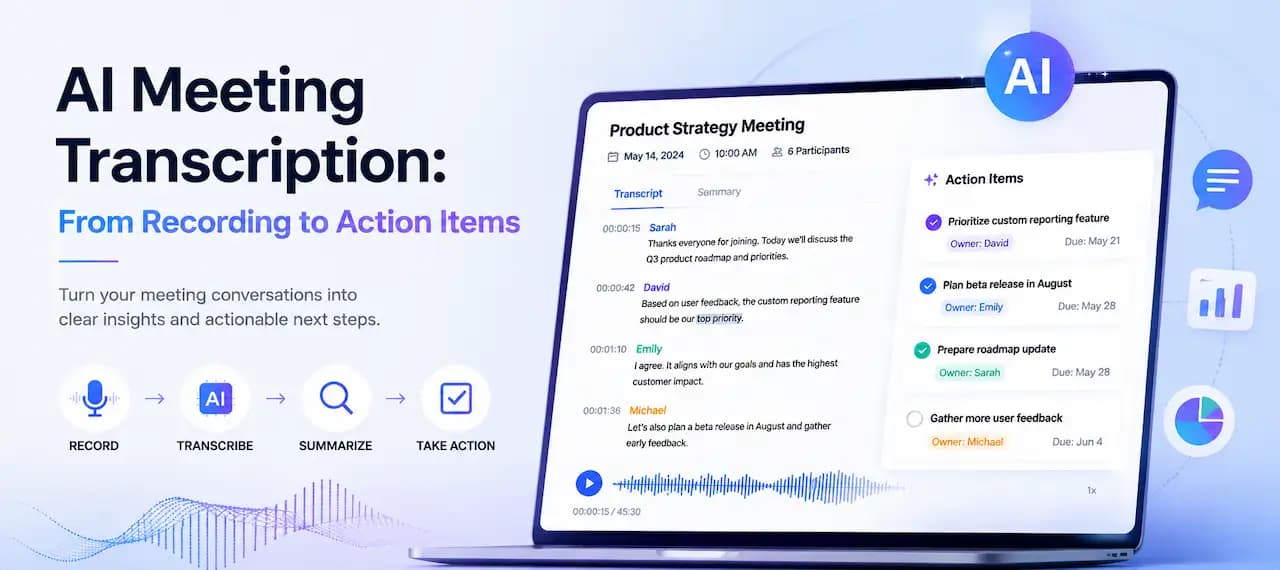
रिकॉर्ड की गई मीटिंग काम की होती है, लेकिन वही चीज़ सीधे काम आगे नहीं बढ़ाती। टीम मीटिंग, क्लाइंट कॉल या रिसर्च इंटरव्यू के बाद वास्तव में ज़रूरत होती है एक searchable transcript, साफ़ मीटिंग summary और ऐसे छोटे action items की जिन्हें कोई व्यक्ति अपने जिम्मे ले सके।
यही वजह है कि AI meeting transcription इतना महत्वपूर्ण है। मीटिंग रिकॉर्डिंग को text में बदलना आपको raw material देता है। उस text को meeting notes, decisions और follow-up tasks में बदलना ही रिकॉर्डिंग को सच में उपयोगी बनाता है।
ScribeFlash आपको meeting recording से text तक, और फिर transcript से notes, summaries और exports तक पहुँचने में मदद करता है। अगर आपका मुख्य लक्ष्य calls और recurring team conversations के लिए एक dedicated workflow है, तो शुरुआत meeting transcription tool से करना सबसे बेहतर रहेगा।
AI meeting transcription क्या है?
AI meeting transcription वह प्रक्रिया है जिसमें रिकॉर्ड की गई मीटिंग अपने-आप text में बदल जाती है। व्यवहार में इसका मतलब Zoom transcription, Google Meet transcription, Teams meeting transcription या किसी uploaded audio/video file से transcript बनाना हो सकता है।
Transcript वह raw record है जिसमें लोगों ने क्या कहा, वह जस का तस रहता है। Meeting notes उसका साफ़ और साझा करने योग्य रूप होते हैं। Meeting summary मुख्य बिंदुओं को सामने लाता है। और meeting transcript से निकले action items बातचीत को जिम्मेदार व्यक्तियों और deadlines वाले काम में बदल देते हैं।
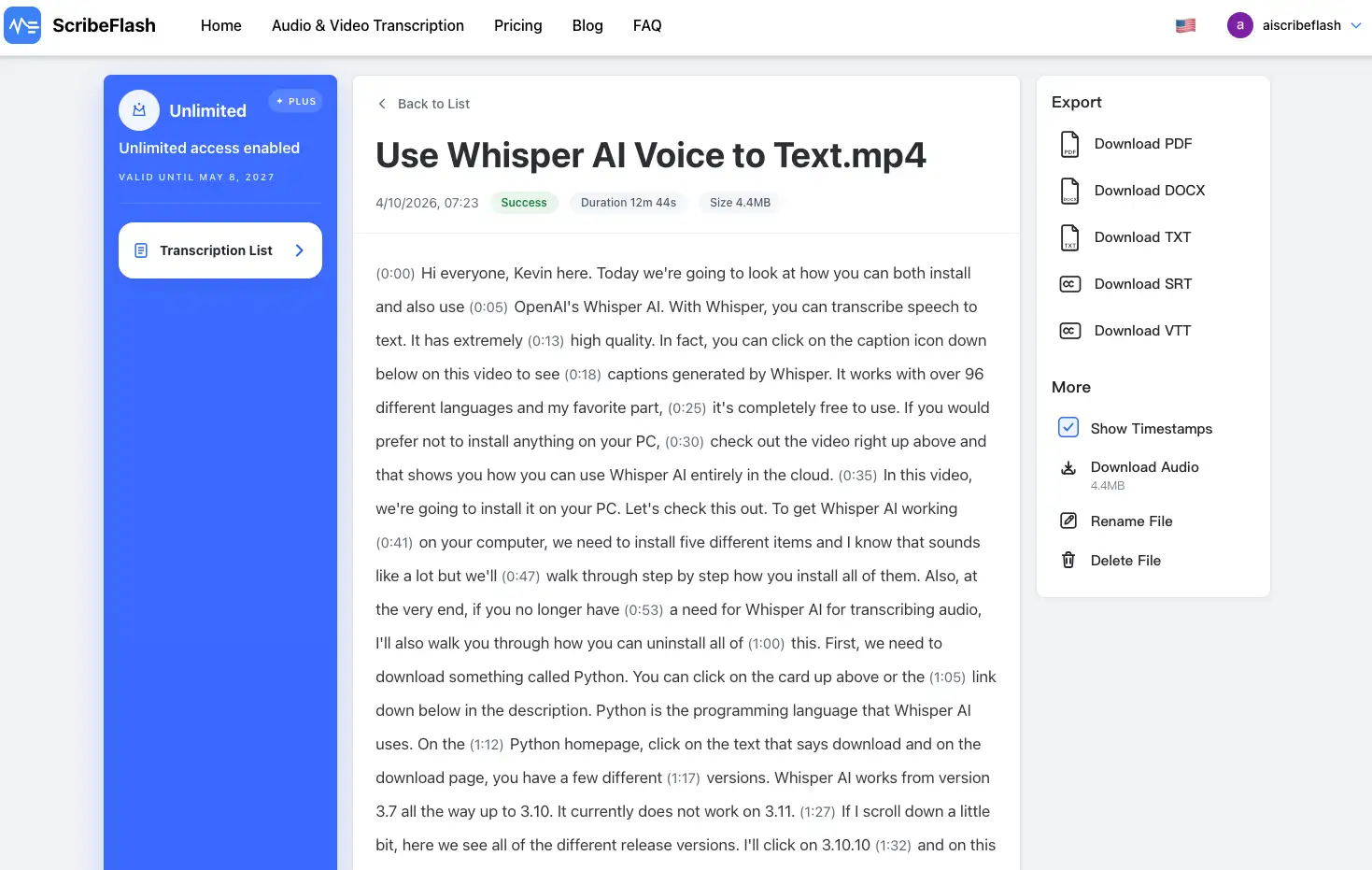
एक अच्छा meeting transcript generator सिर्फ शब्दों का पैराग्राफ नहीं उगलता। उसमें speaker labels, timestamps, searchable output और editable transcript होना चाहिए, ताकि टीम के साथ साझा करने से पहले आप उसे जल्दी से साफ़-सुथरा कर सकें।
कॉल के बाद meeting transcription क्यों मायने रखता है?
ज़्यादातर टीमें calls join करने में नहीं अटकतीं। मुश्किल बाद में शुरू होती है। Weekly sync खत्म होता है, client call wrap up होती है या webinar recording किसी folder में आ गिरती है, और कोई भी सिर्फ budget, scope या next steps पर हुई एक decision ढूँढने के लिए 52 मिनट की audio scrub नहीं करना चाहता।
Meeting transcription रिमोट टीमों को memory पर निर्भर हुए बिना रिकॉर्ड रखने में मदद करता है। यह recording से meeting notes बनाना भी practical बनाता है, चाहे मामला sales follow-up का हो, user interviews, research interviews, internal discussions, podcast-style conversations या webinar debriefs का।
Researchers के लिए transcript analysis time कम करता है। Operations टीमों के लिए यह decisions को traceable बनाता है। Managers के लिए यह transcript से बनी meeting minutes को ऐसा material बना देता है जिसे अगली call से पहले review किया जा सके, बजाय उसी चर्चा को फिर दोहराने के।
एक उपयोगी meeting transcript में क्या होना चाहिए?
जब transcript में कुछ बुनियादी चीज़ें शामिल हों, जिनकी टीमों को बाद में बार-बार ज़रूरत पड़ती है, तब उसकी value काफी बढ़ जाती है।
1. पूरा transcript
सिर्फ highlights नहीं, पूरी बातचीत चाहिए ताकि जब किसी को wording या context verify करना हो, तब details गायब न हों।
2. Speaker labels
जब कई लोग बातचीत में शामिल हों, तो speaker labels वाला meeting transcript पढ़ना बहुत आसान हो जाता है। इससे यह समझना भी आसान हो जाता है कि किसने क्या commit किया था।
3. Timestamps
Timestamped meeting transcript आपको उस exact moment पर वापस ले जा सकता है जहाँ कोई quote, decision या objection आया था।
4. Meeting summary
एक concise meeting summary व्यस्त लोगों को मुख्य outcome जल्दी समझा देता है, बिना पूरी transcript पहले खोलने के।
5. मुख्य decisions
यहीं transcript archive से operational asset बनता है। Approvals, changes और closed questions को साफ़ तरीके से capture करना ज़रूरी है।
6. Action items
Meeting action items में जहाँ संभव हो, task, owner और अगली visible deadline शामिल होनी चाहिए।
7. Follow-up checklist
एक छोटी follow-up checklist टीम को recap भेजने, project tracker update करने और खुले सवाल बंद करने में मदद करती है, जबकि बातचीत अभी भी ताज़ा हो।
8. Export options
Searchable transcript formats, editable exports और subtitle files इसलिए महत्वपूर्ण हैं क्योंकि एक ही मीटिंग आउटपुट को teams docs, Slack, Notion, CRM और video platforms में आगे ले जाती हैं।
ScribeFlash से meeting recording को कैसे transcribe करें
रिकॉर्डिंग अपलोड करें, transcript बनाएं, फिर उसे notes और action items में बदलें।
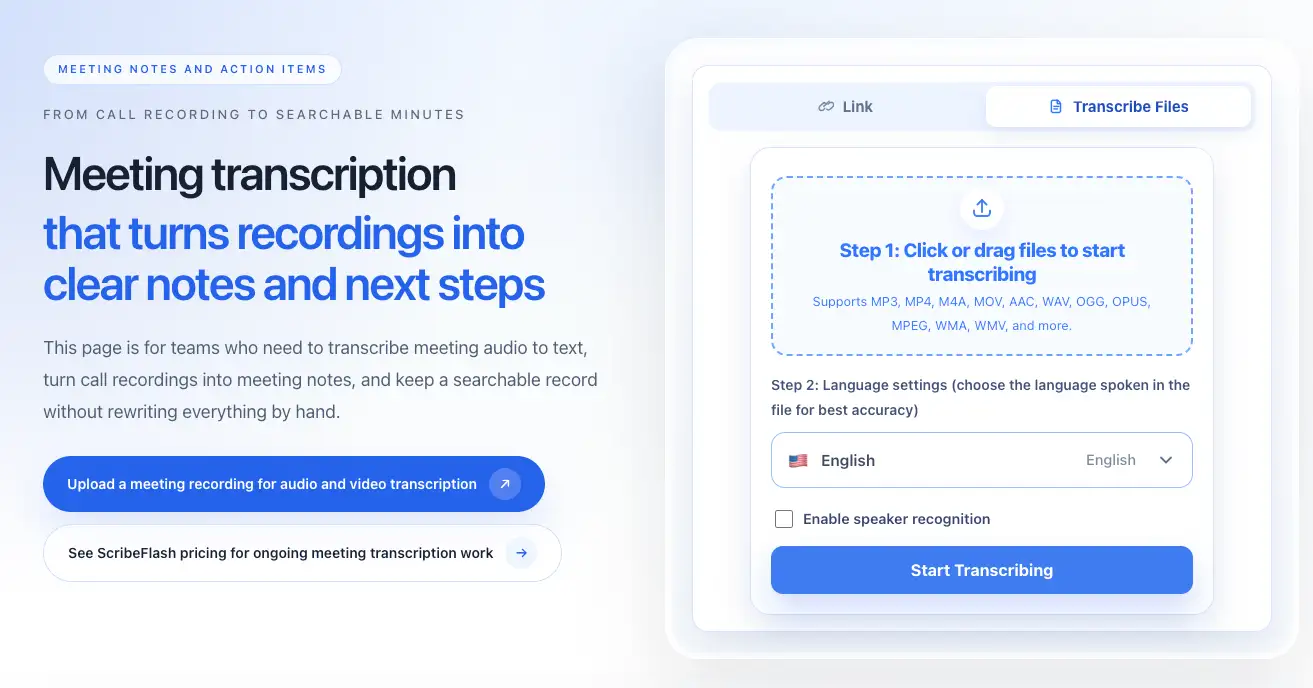
1. अपनी meeting recording upload करें
Zoom, Google Meet, Teams, voice recorder या किसी अन्य meeting platform से recorded file लेकर शुरुआत करें।
2. Transcription language चुनें
बोली गई भाषा सही सेट करने से model terminology, accents और multilingual teams को ज़्यादा भरोसेमंद तरीके से संभाल पाता है।
3. ज़रूरत हो तो speaker recognition चालू करें
Interviews, project meetings, stakeholder reviews और उन सभी चर्चाओं में जहाँ speaker labels से outcome की reading बदलती है, speaker recognition काम आता है।
4. Meeting transcript generate करें
Transcript तैयार हो जाने पर names, dates, product terms, numbers और उन हिस्सों की review करें जो follow-up decision को प्रभावित कर सकते हैं।
5. Names, terms और decisions को review करें
अक्सर यह full rewrite नहीं, बल्कि तेज़ cleanup pass होता है। लक्ष्य यह है कि output इतना साफ़ हो कि आप उसे भरोसे से साझा कर सकें।
6. Transcript को notes और action items में बदलें
जब तक बातचीत ताज़ा है, summary, decisions, owners, open questions और next steps निकाल लें।
7. TXT, DOCX, PDF, SRT या VTT में export करें
Format वही चुनें जहाँ यह meeting transcript आगे इस्तेमाल होना है।
Zoom, Google Meet और Teams meeting transcription
ज़्यादातर लोगों को यह फ़र्क नहीं पड़ता कि file किस meeting platform ने बनाई। वे यह जानना चाहते हैं कि recording जल्दी transcribe हो और output उपयोगी निकले। इसमें Zoom meeting transcription, Google Meet recording transcription और Microsoft Teams meeting transcription सब शामिल हैं।
अगर source media पहले से online है और आप uploaded file की बजाय link से काम करना चाहते हैं, तो URL transcription workflow इस्तेमाल करें। यह hosted webinar recordings, shared meeting videos और दूसरे accessible media links के लिए practical रास्ता है।
यही logic तब भी लागू होता है जब आपको video meeting transcription चाहिए या audio meeting transcription। असली बात यह है कि बातचीत editable text में आए और उसमें reuse के लिए पर्याप्त structure हो।
Transcript से meeting notes, summary और action items तक
Transcription सिर्फ पहली layer है। असली value तब आती है जब raw speech को ऐसे meeting recap में बदला जाए जिसे कोई दो मिनट में पढ़ सके।
Structured transcript summary, decisions, owners और next steps को अलग करना आसान बनाता है।
एक practical structure कुछ ऐसा हो सकता है: summary, key decisions, action items, open questions, follow-up owner और deadline। यह format automated meeting notes, meeting summary review और transcript output से action items निकालने में बहुत मदद करता है, बिना पूरी चीज़ line by line पढ़ने के।
उदाहरण के लिए, किसी client call के बाद आप एक summary paragraph, scope पर दो decisions, owners के साथ तीन action items और एक unanswered technical question capture कर सकते हैं। यह एक घंटे की recording वापस भेजने से कहीं ज़्यादा उपयोगी है।
अगर आप recurring calls संभालते हैं, तो pricing भी देखना ठीक रहेगा, ताकि workflow हर बार नए प्रयोग जैसा न लगे बल्कि predictable रहे।
Meeting transcripts के लिए सबसे अच्छे export formats
अलग-अलग formats notes, archives, subtitles और handoff workflows को support करते हैं।
TXT
TXT तब सबसे अच्छा है जब आप meeting recording से निकला text जल्दी से Notion, Slack, CRM या project tracker में paste करना चाहते हैं।
DOCX
DOCX formal meeting notes, meeting minutes, client records और collaborative editing के लिए अच्छा काम करता है।
PDF
PDF sharing, sign-off और archiving के लिए उपयोगी है, खासकर जब layout को fixed रखना हो।
SRT
SRT subtitles webinar recordings, training videos और republished meeting clips के लिए अच्छे रहते हैं।
VTT
VTT subtitles browser-based playback, internal knowledge bases और course platforms में अच्छे से फिट होते हैं।
Meeting transcription कब इस्तेमाल करना चाहिए?
जब call खत्म होने के बाद भी बातचीत मायने रखती हो, तब meeting transcription उपयोगी है। इसमें remote team meetings, client calls, sales calls, user interviews, research interviews, training sessions, project meetings, internal discussions, webinar recordings और podcast-style roundtables शामिल हैं।
यह खास तौर पर तब काम आता है जब बाद में searchable transcript चाहिए हो, decisions chat threads में खो जाते हों, या एक ही व्यक्ति पर notes लेने का बोझ डालना ठीक न हो।
बेहतर meeting transcripts पाने के लिए सुझाव
साफ़ audio अभी भी बहुत मायने रखती है। सबसे अच्छा उपलब्ध microphone इस्तेमाल करें, जहाँ संभव हो overlapping speech कम करें और recording noisy हो तो important names, companies, product terms, numbers और dates दोहराएँ।
लंबी मीटिंग्स में पहले summary, key decisions और action items review करें, फिर details चाहिए हों तो timestamps पर लौटें। यह पूरी transcript ऊपर से नीचे तक पढ़ने से आमतौर पर तेज़ होता है।
अगर आपकी team को compliance या client sensitivity की चिंता है, तो workflow को बड़े स्तर पर लागू करने से पहले security and trust page और FAQ देख लें।
जब meeting notes, subtitles या transcript exports आपके content process के दूसरे हिस्सों में भी जाने लगें, तब आप blog पर दूसरे transcription workflows भी देख सकते हैं।
FAQ
AI meeting transcription क्या है?
AI meeting transcription मीटिंग रिकॉर्डिंग को अपने-आप text में बदल देता है, अक्सर speaker labels और timestamps के साथ, ताकि transcript को खोजना और reuse करना आसान हो जाए।
मैं Zoom meeting recording को कैसे transcribe करूँ?
Recorded Zoom file को transcription tool में upload करें, language चुनें, ज़रूरत हो तो speaker labels चालू करें और transcript generate करें। Post-call notes के लिए यही सामान्य Zoom transcription workflow है।
क्या मैं Google Meet या Microsoft Teams recordings को transcribe कर सकता हूँ?
हाँ। Google Meet recording transcription और Teams meeting transcription का process broadly वही है जो किसी भी दूसरी recorded meeting के साथ होता है: file upload करें या supported link workflow इस्तेमाल करें, फिर transcript generate करके review करें।
क्या ScribeFlash recording से meeting notes बना सकता है?
हाँ। Transcript तैयार होने के बाद आप उसमें से summary, decisions, owners और next steps निकालकर recording output को meeting notes में बदल सकते हैं।
मैं meeting transcript से action items कैसे निकालूँ?
Transcript में commitments, owners, deadlines और unresolved questions ढूँढें। फिर उन्हें एक छोटी action list में group कर दें, ताकि पूरी conversation दोबारा पढ़े बिना actions साफ़ दिखें।
अगर आप recording से transcript, summary और action items तक एक ही workflow में पहुँचना चाहते हैं, तो meeting transcription page सबसे साफ़ शुरुआत है।
संबंधित गाइड
workflow को आगे बढ़ाते रहें
ये गाइड उसी तरह के use case के आसपास रहती हैं, ताकि आप एक सवाल से अगले सवाल तक जा सकें और बीच में असंबंधित पेजों पर न भटकें।