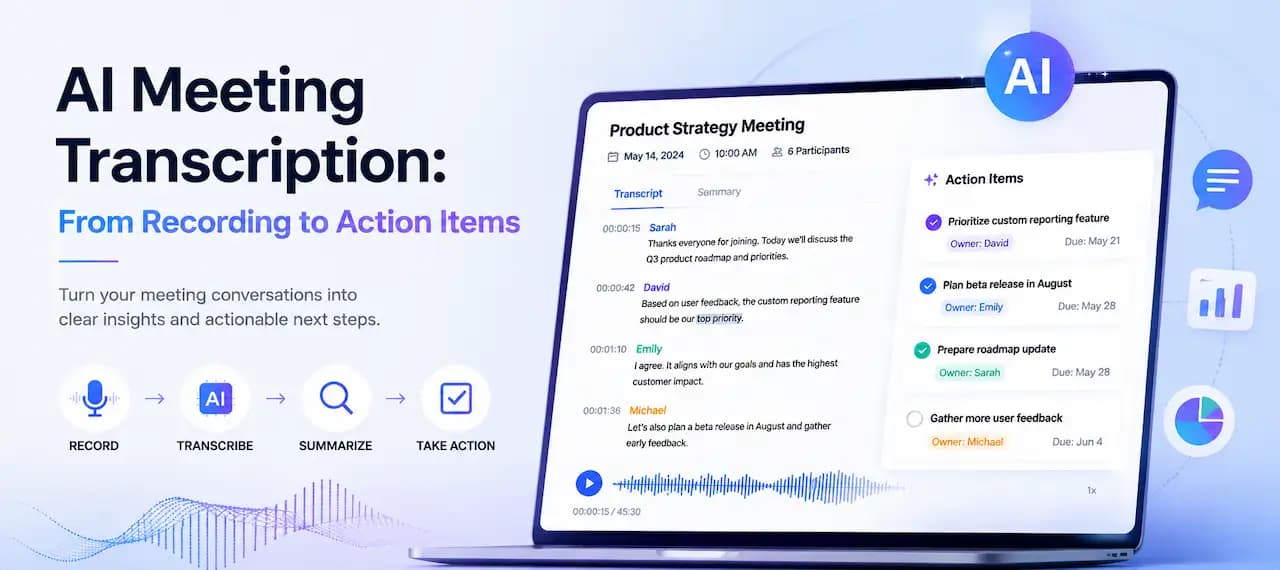
AI Meeting Transcription: From Recording to Action Items
June 5, 2026 · By ScribeFlash Team · 8 min read
Learn how to turn Zoom, Google Meet, Teams, and other meeting recordings into transcripts, notes, summaries, and action items with ScribeFlash.
Meeting TranscriptionMeeting NotesAction ItemsAI TranscriptionRemote Teams
A recorded meeting is useful, but it is not the thing you act on. What you actually need after a team meeting, client call, or research interview is a searchable transcript, a clean meeting summary, and a short list of action items people can own.
That gap is why AI meeting transcription matters. Converting a meeting recording to text gives you the raw material. Turning that text into meeting notes, decisions, and follow-up tasks is what makes the recording usable.
ScribeFlash helps you move from meeting recording to text, then from transcript to notes, summaries, and exports. If your main goal is a dedicated workflow for calls and recurring team conversations, start with the meeting transcription tool.
What is AI meeting transcription?
AI meeting transcription is the process of turning a recorded meeting into text automatically. In practice, that can mean Zoom transcription, Google Meet transcription, Teams meeting transcription, or a transcript from any uploaded audio or video file.
A transcript is the raw record of what people said. Meeting notes are the cleaned-up version you share. A meeting summary highlights the main points. Action items from a meeting transcript turn discussion into work with owners and deadlines.
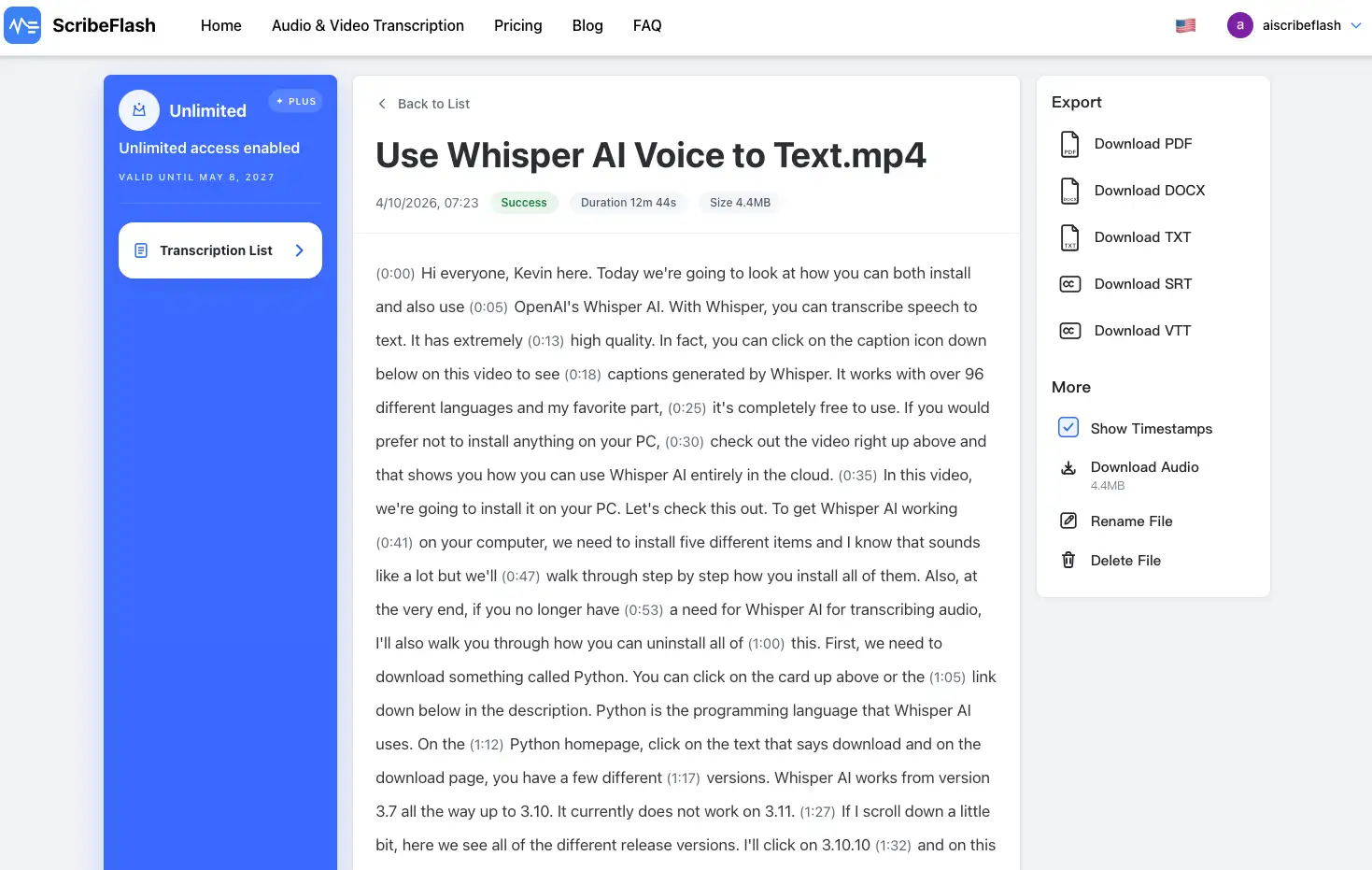
A useful meeting transcript generator should do more than dump words into a paragraph. It should support speaker labels, timestamps, searchable output, and an editable transcript you can quickly clean up before sharing it with the rest of the team.
Why meeting transcription matters after a call
Most teams do not struggle with joining calls. They struggle with what happens after. A weekly sync ends, a client call wraps, or a webinar recording lands in a folder, and nobody wants to scrub through 52 minutes of audio just to find one decision about budget, scope, or next steps.
Meeting transcription helps remote teams keep a record without relying on memory. It also makes meeting notes from recording practical for sales follow-ups, user interviews, research interviews, internal discussions, podcast-style conversations, and webinar debriefs.
For researchers, a transcript shortens analysis time. For operations teams, it makes decisions traceable. For managers, it turns meeting minutes from transcript into something people can review before the next call instead of repeating the same conversation.
What should a useful meeting transcript include?
A transcript becomes much more valuable when it includes a few basics teams keep needing later.
1. Full transcript
You want the complete conversation, not only highlights, so details are still there when someone needs to verify wording or context.
2. Speaker labels
A meeting transcript with speaker labels is far easier to scan when several people are involved. Speaker identification also reduces the back-and-forth of asking who committed to what.
3. Timestamps
A timestamped meeting transcript makes it possible to jump back to the original moment when a quote, decision, or objection matters.
4. Meeting summary
A concise meeting summary gives busy readers the core outcome without making them open the full transcript first.
5. Key decisions
This is where the transcript stops being archival and starts being operational. Capture approvals, changes, and closed questions clearly.
6. Action items
Meeting action items should name the task, the owner, and the next visible deadline whenever possible.
7. Follow-up checklist
A short meeting follow-up checklist helps teams send the recap, update the project tracker, and close open questions while the discussion is still fresh.
8. Export options
Searchable transcript formats, editable transcript exports, and subtitle files matter because teams move the same meeting output into docs, Slack, Notion, CRM systems, and video platforms.
How to transcribe a meeting recording with ScribeFlash
Upload the recording, generate the transcript, then turn it into notes and action items.
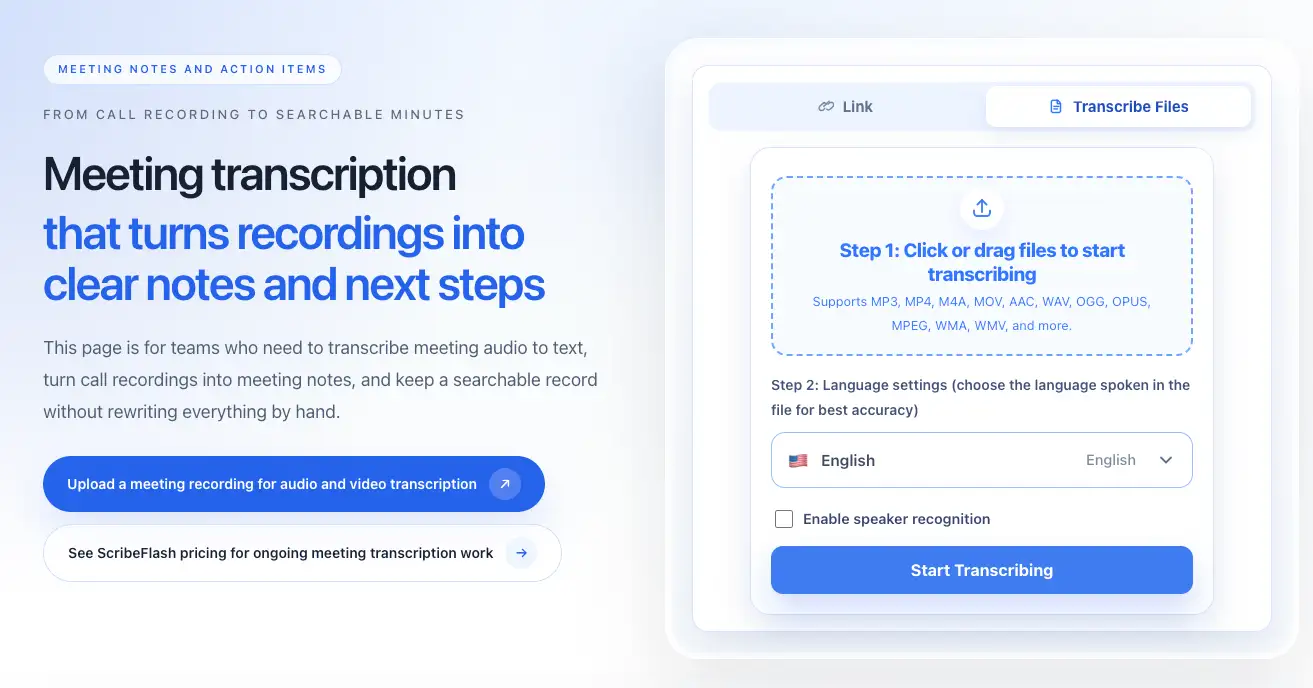
1. Upload your meeting recording
Start with the recorded meeting file from Zoom, Google Meet, Teams, a voice recorder, or another meeting platform.
2. Choose the transcription language
Setting the spoken language correctly helps the model handle terminology, accents, and multilingual teams more reliably.
3. Enable speaker recognition if needed
Speaker recognition is worth enabling for interviews, project meetings, stakeholder reviews, and any discussion where speaker labels change how you read the outcome.
4. Generate the meeting transcript
Once the transcript is ready, review the sections that matter most: names, dates, product terms, numbers, and anything that could change a follow-up decision.
5. Review names, terms, and decisions
This is usually a fast cleanup pass rather than a rewrite. The goal is to make the meeting transcript generator output clean enough to share confidently.
6. Turn the transcript into notes and action items
Pull out the summary, decisions, owners, open questions, and next steps while the conversation is still fresh.
7. Export as TXT, DOCX, PDF, SRT, or VTT
Choose the format based on where the meeting transcript needs to go next.
Zoom, Google Meet, and Teams meeting transcription
Most people do not care which meeting platform created the file. They care whether they can transcribe the recording quickly and get useful output. That includes Zoom meeting transcription, Google Meet recording transcription, and Microsoft Teams meeting transcription.
If the source media already lives online and you want to work from a link instead of an uploaded file, use the URL transcription workflow. It is a practical route for hosted webinar recordings, shared meeting videos, and other accessible media links.
The same logic applies whether you need video meeting transcription or audio meeting transcription. The important part is getting the conversation into editable text with enough structure to reuse it.
From transcript to meeting notes, summary, and action items
Transcription is only the first layer. The real value comes when you turn raw speech into a meeting recap someone can read in two minutes.
A structured transcript makes it easier to separate summary, decisions, owners, and next steps.
A practical structure looks like this: summary, key decisions, action items, open questions, follow-up owner, and deadline. That format works for automated meeting notes, meeting summary review, and extracting action items from meeting transcript output without forcing the team to read everything line by line.
For example, after a client call you might capture one summary paragraph, two decisions about scope, three action items with owners, and one unanswered technical question. That is far more useful than sending a one-hour recording back to the team.
If you handle recurring calls, it is also worth checking pricing so the workflow stays predictable instead of becoming a one-off experiment every time another recorded meeting appears.
Best export formats for meeting transcripts
Different export formats support notes, archives, subtitles, and handoff workflows.
TXT
TXT is best when you want to paste the meeting recording to text output into Notion, Slack, a CRM, or a project tracker quickly.
DOCX
DOCX works well for formal meeting notes, meeting minutes, client records, and collaborative editing.
PDF
PDF is useful for distribution, sign-off, and archiving when you want the layout to stay fixed.
SRT
SRT subtitles are a good fit for webinar recordings, training videos, and republished meeting clips.
VTT
VTT subtitles fit browser-based playback, internal knowledge bases, and course platforms.
When should you use meeting transcription?
Use meeting transcription when the conversation matters after the call ends. That includes remote team meetings, client calls, sales calls, user interviews, research interviews, training sessions, project meetings, internal discussions, webinar recordings, and podcast-style roundtables.
It is especially useful when people need searchable transcript access later, when decisions are easy to lose in chat threads, or when one person should not be stuck taking notes while everyone else speaks.
Tips for getting better meeting transcripts
Clear audio still matters. Use the best microphone available, reduce overlapping speech when possible, and repeat important names, companies, product terms, numbers, and dates if the recording is noisy.
For long meetings, review the summary, key decisions, and action items first, then return to timestamps if you need detail. That is usually faster than reading the entire transcript top to bottom.
If your team has compliance or client sensitivity concerns, review the security and trust page and the FAQ before rolling the workflow out more broadly.
You can also explore more transcription workflows on the blog once meeting notes, subtitles, or transcript exports start feeding other parts of your content process.
FAQ
What is AI meeting transcription?
AI meeting transcription turns a meeting recording into text automatically, often with speaker labels and timestamps so the transcript is easier to search and reuse.
How do I transcribe a Zoom meeting recording?
Upload the recorded Zoom file to a transcription tool, choose the language, enable speaker labels if needed, and generate the transcript. That is the usual Zoom transcription workflow for post-call notes.
Can I transcribe Google Meet or Microsoft Teams recordings?
Yes. Google Meet recording transcription and Teams meeting transcription follow the same general process as any other recorded meeting: upload the file or use a supported link workflow, then generate and review the transcript.
Can ScribeFlash generate meeting notes from a recording?
Yes. Once the transcript is ready, you can turn it into meeting notes from recording output by pulling out the summary, decisions, owners, and next steps.
How do I extract action items from a meeting transcript?
Review the transcript for commitments, owners, deadlines, and unresolved questions. Group them into a short action list so the meeting action items are visible without rereading the full conversation.
If you want to move from recording to transcript, summary, and action items in one workflow, the meeting transcription page is the cleanest place to start.
Related guides
Keep the workflow moving
These guides stay close to the same use case, so you can move from one question to the next without jumping across unrelated pages.